After seeing Ruth’s smoke photo in the Tuesday Challenge last week I wanted to have a go. I read about how to do it and bought some incense sticks.
I quickly learnt some lessons:
You need loads of light. I had a 150W flashgun on full power, with a honeycomb snoot but it still wasn’t enough, due to the need to use a small aperture, fast shutter speed and low ISO.
It’s actually really hard to make the curls of smoke look pretty
It’s hard to focus accurately on a target that’s blurry anyway, and keeps moving.
You need to stay relatively far zoomed out as the smoke can go any direction. Cropping the images after you’ve taken them magnifies any imperfections in focus, ISO noise, or cheap camera artefacts.
You need a good camera. My inexpensive Fuji S9600 was quickly shown up with bad ISO noise in the low light conditions
Nonetheless, here’s some of the better shots I managed. I’ve crudely given the smoke plumes false colours to make them interesting.
SmokeSmoke
I will most definitely be revisiting this idea in the future 🙂
I’ve dabbled in Linux for several years now – I’ve looked after Linux servers at work and at home, and I’ve had a secondary desktop PC running some version of Fedora or other.
Two years ago I switched over my PC at work from Vista to Fedora, and I haven’t looked back. I didn’t have any particularly unusual requirements of a work PC; just an ssh client to configure servers. I actually prefer the GNOME desktop to a Windows desktop, and I’ve been getting on with Fedora very well indeed.
A couple of months after this I decided to install Fedora on my main PC at home. I felt that I’d learned enough about desktop Linux to be able to get it going satisfactorily. And while it’s all good and well having a secondary Linux PC, you get any good at it unless it’s your primary.
The transition went very smoothly on the whole – I got most of my hardware working and I was very pleased with the usability. But it still nags me that there are a handful of things that don’t work (either satisfactorily, or in some cases at all) on Linux, so I’m still forced to keep Windows.
Audio Editing
I’m a massive fan of home audio production. I play a few musical instruments and I own a set of decent recording equipment (see my Equipment List), including a Phonic Helix Board 24 firewire mixer. I purchased the mixer when I was still running Windows XP as my primary OS, and it worked very nicely. I used to use Syntrillium’s Cool Edit Pro (now Adobe Audition) and I got on very well with it.
When I moved over to Linux, I was keen to get the mixer working. There exists a project named ffado which strives to get firewire audio devices working on Linux. Unfortunately it doesn’t offer full support for Phonic devices. I did have it working at one point, although it was iffy at best, and a pain to configure each time I wanted to use it.
And while Ardour is a pretty decent piece of software, I had grown used to Cool Edit and Audition and didn’t see why I should move away. So I still boot into Windows for my audio work.
Gaming
This is one of the most common complaints from individuals who migrate to Linux. Their games don’t work.
I’m not a massive gamer anyway, but I did often enjoy spending the odd hour on Age of Empires or one of a number of driving games.
Of course some games work under wine, but many don’t. Of the ones that do, they often have missing features or oddities. So I still return to Windows for my occasional gaming.
Unfortunately, since upgrading my Windows installation from XP to Vista, I’ve discovered that Age of Empires doesn’t work on Vista either. A Microsoft game… on a Microsoft OS. Quality. I don’t play Age of Empires any more.
Scanning
For those who read my review of my slide scanner, you’ll recall that it doesn’t work on Linux (at all) or Vista (at all) so I had to use the XP installation on my laptop to scan in 3,000+ slides.
I also have a Canon LiDE 25 flatbed scanner which is detected and apparently works out of the box on Fedora – but unfortunately the colours are funny and broken. I haven’t found a way to remedy this so I still scan on Windows. At least it works on Vista on my desktop PC.
Other applications
And of course, there are always the rare occasions when you encounter the need to use a specific application that is Windows-only, or a file format that somehow ties you to Windows. Recently, I’ve needed to use Windows for…
Boson online testing environment – for practising Cisco exams
Noteworthy Composer – a MIDI editor that’s so good I’ve never found a Linux application that comes close. It does actually work quite nicely under wine with Timidity, but some screen fonts break.
TomTom Home – software for updating the maps on my sat nav
Vue – a 3D rendering suite that I occasionally play with
Summary
Overall, it’s a shame I can’t drop Windows completely. The vast majority of my needs are satisfied by Linux, and Fedora in particular has come a long way since I started using it at Fedora Core 5.
So who’s to blame for this dependence on Windows? In my opinion, the blame must lie with the application developers who write their applications and games for only one OS; the hardware vendors who don’t bother to write drivers for any but the most common OSs.
Linux developers work hard to provide drivers and applications for new devices and new file formats. Their task is made harder by manufacturers who stick to closed formats and proprietary devices. It’s a shame, because it ruins my life!
I didn’t have any particular ideas for pink photos , other than I specifically wanted to avoid flowers because they’re too unoriginal. So I decided this would be a good time to try some of the photographic ideas I’ve been meaning to try for ages. One of these ideas was taking a photo through a magnifying glass, which I bought specifically for this purpose a couple of months ago for 99p.
The only “unusual” pink object I could think of was a jelly baby, and this is the rather abstract result.
Jelly baby
Never realised how ugly these gelatine infants are until I studied them closely. Yuck.
This evening I stumbled across my first web site. I put this together using Publisher 97, probably in the year 1997. It looks rather, uh, dated these days.
While browsing the tree of that site, I also found my brother Oliver’s website, and a site I set up in 1999 about my year 9 class at school.
Frankly I’m amazed it’s still there – I set this site up in webspace provided with a dialup ISP and I terminated my account once we had ADSL – probably in 1999 or so.
I saw this deer in the deer park at Ashton Court, just across the suspension bridge from Bristol. Unfortunately it was the only one near enough to the fence to have its photo taken, and is the best photo of a bad bunch.
Deer
For those who are interested, this photo was uploaded from Ashton Court using my EeePC and a USB 3G modem! This is my first real-world test of the technology, and I have to say I’m impressed. It worked reliably and at a decent speed.
I recently had a need to convert 3,000 scanned TIFF images to a more sensible format for distribution, such as JPEG. I’ve been using GIMP to edit the individual photos but sadly it doesn’t have a batch format conversion tool.
So I wrote my own little script in bash. You will need to install ImageMagick (a commandline image editor) on your box first, but this is bundled with most distributions and be installed from a repository.
Things to be aware of when using this script:
It does not recurse into subdirectories – you have to place the script in the same directory that the TIFFs are in
At the time of writing, ImageMagick is single-threaded and can only use one core of a multicore CPU. If you want to use N cores, you have to split the photos into N directories and run N copies of the script. However be aware that, in my case at least, each TIFF was around 45MB and took between 1 and 1.5 seconds to convert. This means the disk is reading at maybe 40MB/s, so running two threads you will quickly hit the limit of your disk.
You can change the compression of the JPG by altering the value 85 in the script below.
You can also convert your TIFFs to other formats. See man convert for details.
Finally, the code you’ve all been waiting for. Feel free to use, edit, distribute this anywhere you please.
#!/bin/bash
total=`ls *.tif | wc -l`

count=0

ls *.tif | while read i

do

file=`basename "$i" .tif`

echo $file

convert "$file.tif" -quality 85 "$file.jpg"

count=`expr $count + 1`

percent=$(($count / $total))

echo $percent% completed, done $count of $total

done

echo All done!
If you liked my Big photo, perhaps you’d like to see how it was done. Not as hard as you might think! You will need:
A mannequin (mine was £6 from Ikea)
A toy car (47p from Tesco)
Some boxes for buildings (I used boxes of slides)
Coloured-in black Post-It notes for windows
Matchsticks for antennae/flagpoles on buildings
A black painted cardboard cutout of a city skyline
A sheet to hang up
An Airfix model of a Spitfire
Blue-Tack to hold it all together, and a can of beans to weigh it down
I lit the scene using natural sunlight from the window to illuminate the sheet. This makes it look more like sky. I also used the modelling light on my flash – but not the flash itself – to light the scene from the sun. I positioned the flash where the sun might be above my little city.
The final image that I published was exactly as it came from the camera – no editing whatsoever, not even a crop.
From Stu: Back to the usual rules, this week you’re taking a picture especially for the challenge. And the theme is BIG. Good luck!
Well, I haven’t put so much effort into a photograph for a long time! I had fun with this one – cutting out, painting and making a mess. If you want to see how I did it, see The Making Of.
Big
Not quite King Kong, not quite Transformers – but reminds me of Pinocchio on steroids or something.
Note: This article is under development. More info and screenshots will be added later. Keep checking back!
I decided to buy a mobile broadband USB modem yesterday. For those of you who don’t know, I work as a wireless network & VPN specialist for the University of Bristol. At the time of writing, there are 507 access points around campus, giving pretty good coverage. However I often have to visit locations with dead wireless to fix it – and it’s times like these that mobile broadband would come in really handy.
After a bit of market research, I found that Three was the cheapest network; however their standard issue USB modem is made by ZTE and some Googling shows that this isn’t well supported by Linux. That’s a showstopper for me. However, O2 offer Huawei modems which, according to the Internet, work out of the box with recent versions of NetworkManager, which is included with distros such as Fedora and Ubuntu.
After a quick word with an O2 sales adviser, I was told that Windows and OS X are supported, and Linux is not only unsupported, but “won’t work”. Of course, I took this with a pinch of salt. I prefer to believe articles on FedoraForum, for example.
I run a number of operating systems on my various computers. It’s not essential to have it working on all of them, but it would be nice. Here’s what I’ve got:
Home desktop PC: Dual boot Fedora 11 with Windows Vista for occasional gaming or audio work
Main laptop: EeePC 901 with Ubuntu Netbook Remix 9.04
Secondary laptop: HP nx7400 dual boot Fedora 11 with Windows XP for occasional stuff (such as using my slide scanner)
Work PC: Fedora 10
Work laptop: Macbook with OS X 10.5 Leopard
So how did O2 Mobile Broadband really fare on these various systems?
Ubuntu Netbook Remix
First I tried it with the computer I am likely to use most on the move – my trusty EeePC. I connected the modem and was immediately greeted with a screen saying it had detected a USB modem.
I was asked to pick a network provider from a short list.
Setup was complete!
I now connect by using the NetworkManager list, the same way as for regular wireless networks. However, even if I connect to O2 Mobile Broadband, it still uses wireless networks in preference if possible. Very sensible!
Using NetworkManager to select a 3G connection
Fedora
Fedora runs a very similar version of NetworkManager to Ubuntu. The main difference is that you don’t get a magic wizard to put the settings in for you. But don’t worry, it’s quite simple.
Right click the NetworkManager icon, click Edit Connections
Under the Mobile Broadband tab, click Add
Do the same on your Ubuntu PC, except click Edit.
Copy the settings over (or look them up from O2).
Done!
Windows XP
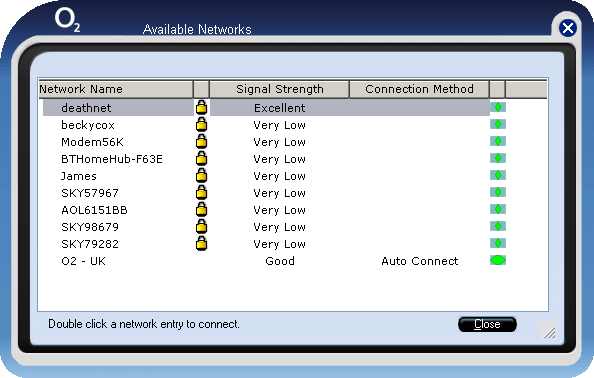
Getting it to work on Windows was easy, although I was not impressed by the software. When you plug in the USB modem, it automatically mounts as a virtual CD-ROM which then autoruns the installer. It’s all themed in the O2 colours and looks smart, even if horrible and blue. Installing it is a simple case of clicking Next repeatedly.
But what I didn’t like was the way that the software automatically takes control of your wired and wireless connections too, without consent.
The main screen
In its defence, it does work and it does do the job. It even has nice features, such as being able to prioritise various connections or networks. You can say you want the wired to always take precedence, followed by your home wireless network, then the 3G network, and finally your neighbour’s wireless.
Listing wireless and 3G networks
However, the application is ugly, blue and blobby. It looks like a UFO. It installed yet another tray icon I don’t want, and it’s changed the way I connect to wireless networks. Of course I’m capable of adapting to the change, but I liked the way I connected to networks before. Why force me to change?
One thing I haven’t tested yet is its ability to connect to WPA2-Enterprise (802.1x) networks, which I use daily as part of my job. This is where lots of other third-party wireless applications fall down.
Tonight I will look into ways to remove the app but keep the driver – and perhaps have the 3G connection available to me as an on-demand connection, the same way that Windows handles VPN connections.
Overall, I’m glad I will almost never be using this laptop with my 3G connection.
Mac OS X Leopard
Despite Apple Macs having a reputation for being intuitive and easy to use, installing the USB modem was a nightmare and I still haven’t got it to work.
While Windows and OS X are the two officially supported platforms, the OS X software is just the default Huawei software without any O2 theming at all. O2 haven’t even bothered to bap in the config in advance. Plugging in the USB modem causes a directory to be mounted, containing an installer and a PDF document. The PDF briefly explains how to install the application and fill in the settings. It has a series of screenshots and simple instructions, although still daunting enough compared with the ease by which most Mac applications are installed.
The software itself is ugly and a bit clunky. It doesn’t have anything sensible like a “tray” icon. You have to load the application manually before you want to use the connection. If you frequently use the software, it would be best to make a dock icon, which you also have to do manually.
Worst of all, it doesn’t actually work (for me). I followed the guide exactly and yet when I came to connect, it always fails with a useless error message of “Connection failure!”.










 Jonathan Gazeley