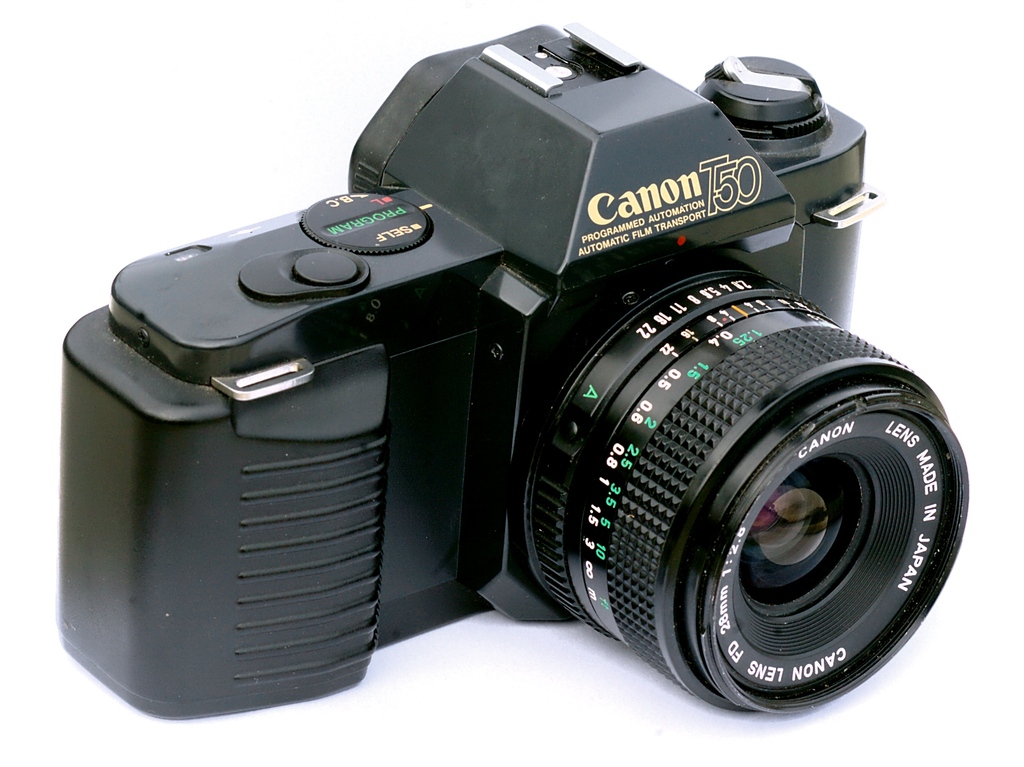
This is a pretty boring camera in terms of photography. You are supposed to use it in program exposure mode. If you do that, it doesn’t tell you what aperture and shutter speed it chose. You can force it to do aperture-priority, but you still don’t know what shutter speed it chose.All Posts
I only bought it because I found it in a charity shop with a beautiful 50mm f/1.4 lens attached!
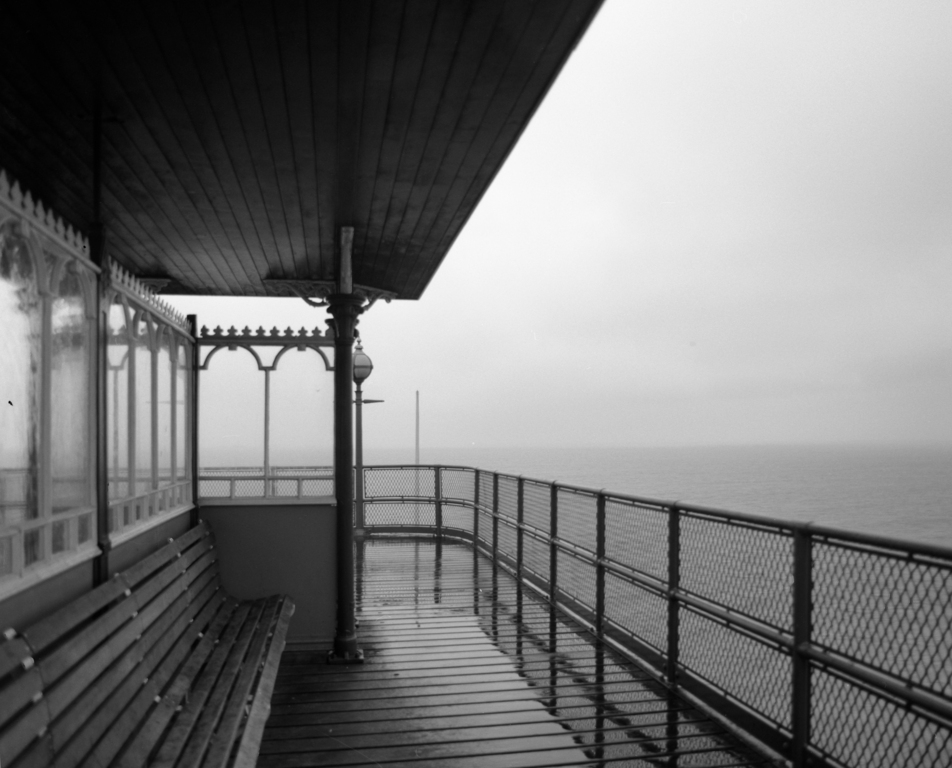
This film has been in my Mamiya RB67 since December 2011, when we went to Clevedon for Hannah’s birthday. Unfortunately a storm blew up while we were on the end of the pier with ridiculous amounts of wind and rain. Nonetheless, we’re English, and we sat there and damn well enjoyed it. When the rain eased off a little, I was able to get the RB67 out and take a few snaps.
Clevedon Pier
As we returned to solid land, the people in the gatehouse looked surprised. They said they didn’t know we were out there and assuming the pier was empty, had closed it because it was too windy to walk safely.
Clevedon Pier
Fast forward to February 2011, and the RB67 had another outing, this time for a walk on Troopers Hill.
Troopers Hill stepsTroopers Hill chimneyTroopers Hill chimneyRiverTroopers Hill Road
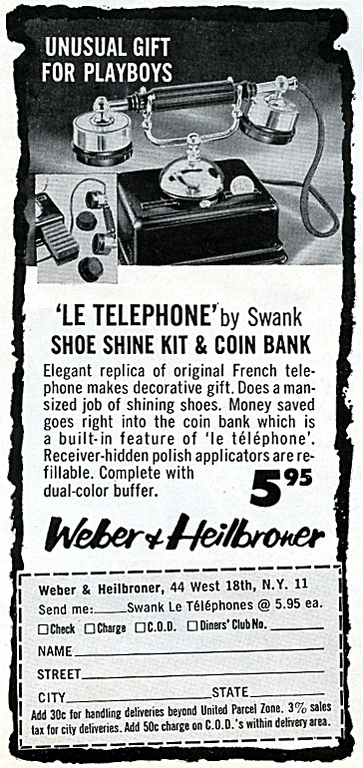
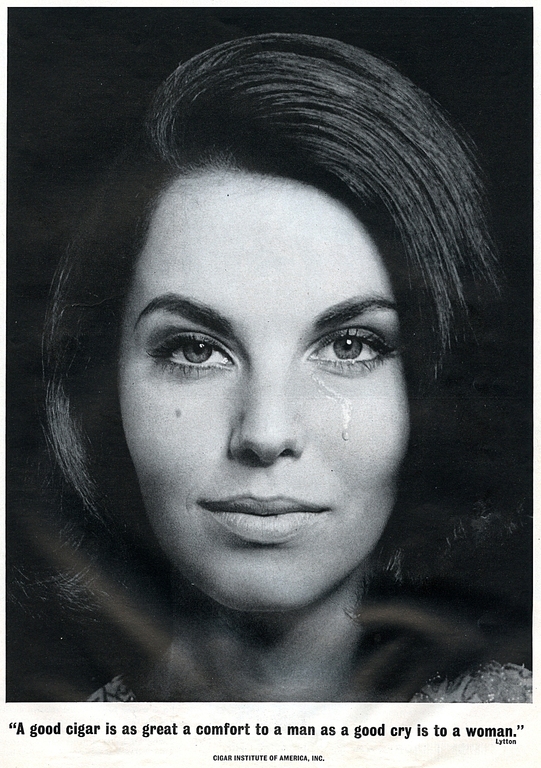
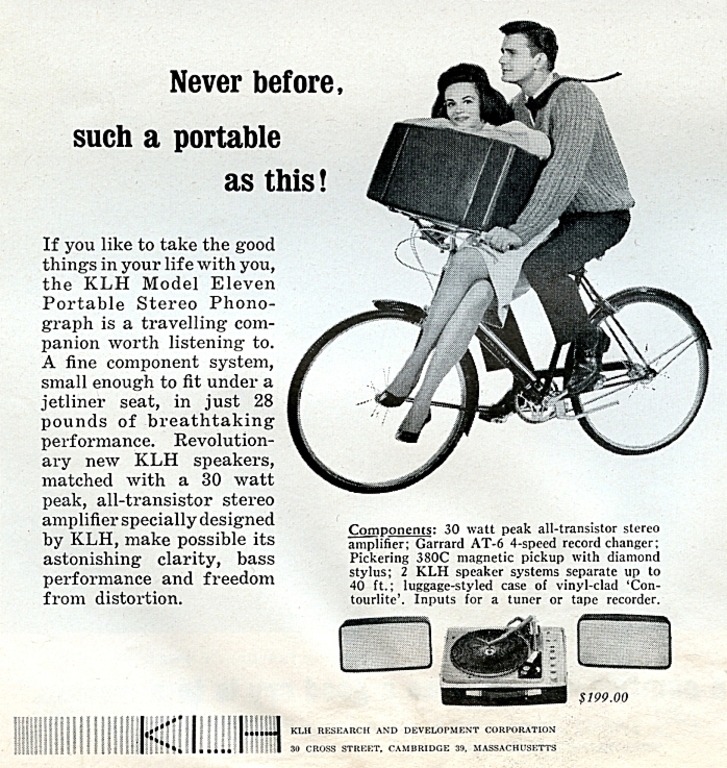
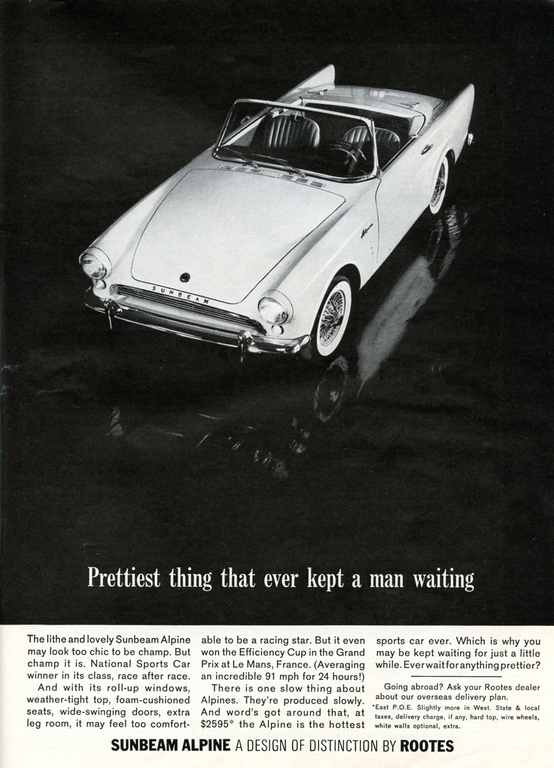
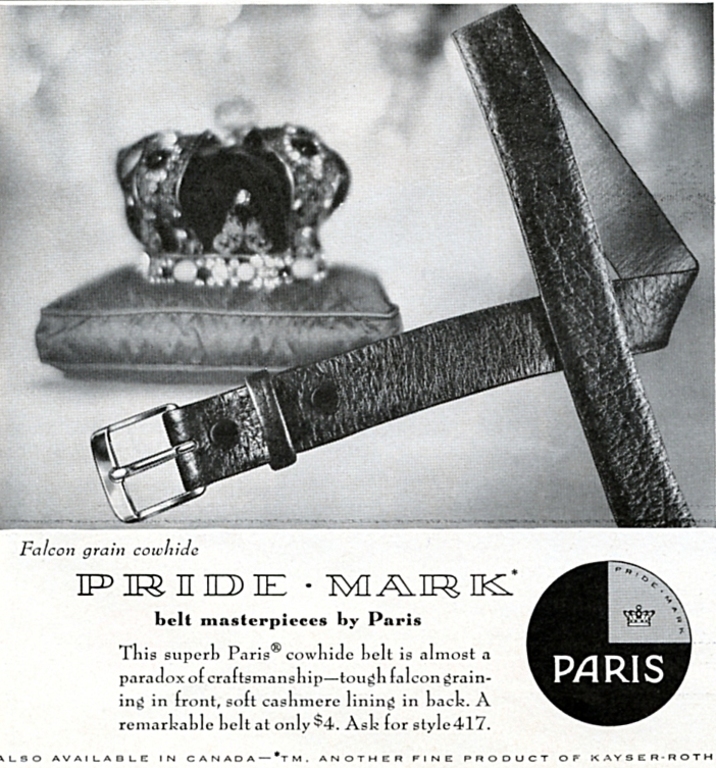
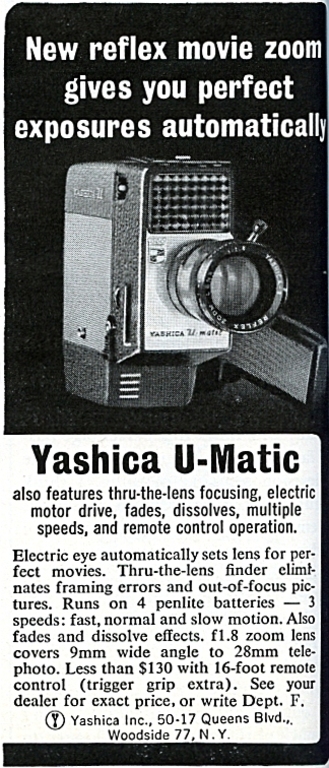
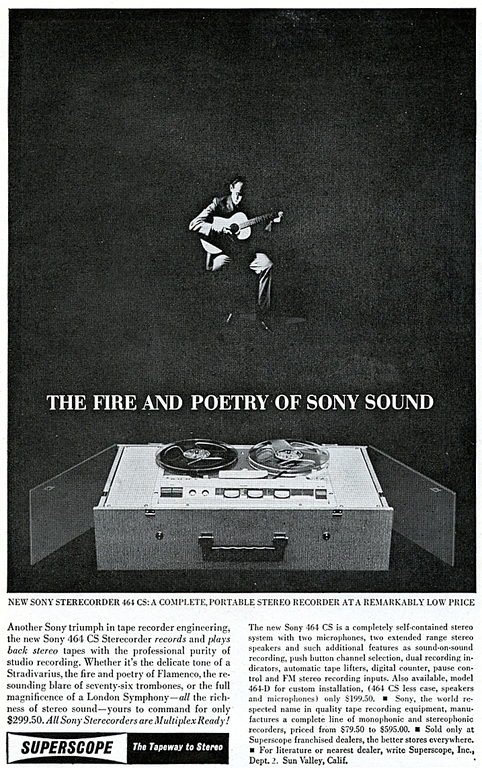
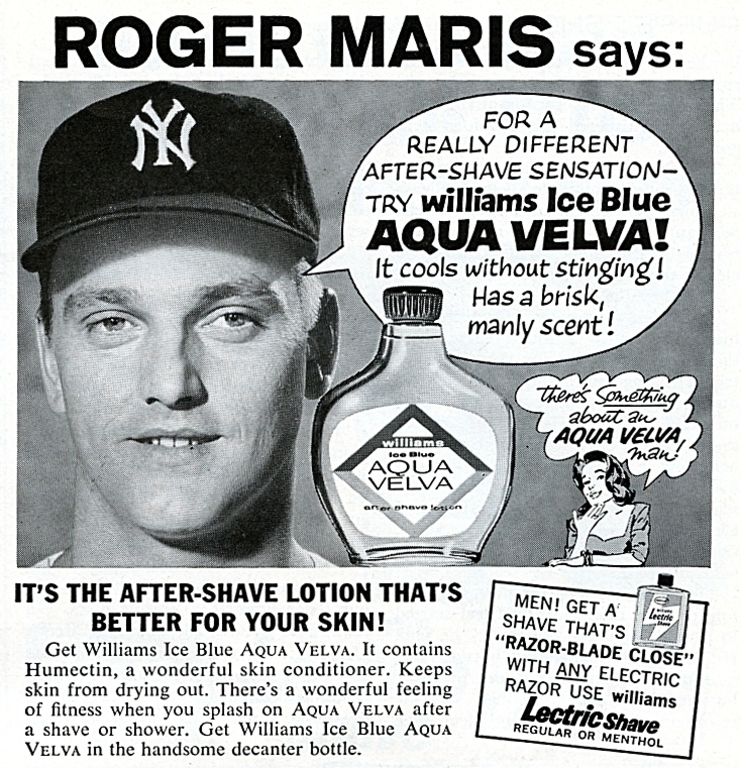
In my job as a network engineer at a university, I recently had to go into the roof space of one of the older halls of residence. I stumbled across a stash of Playboy magazines dating from 1962 – presumably hidden in the out-of-bounds area by a student who lived there at the time. I liberated the magazines, and read them.
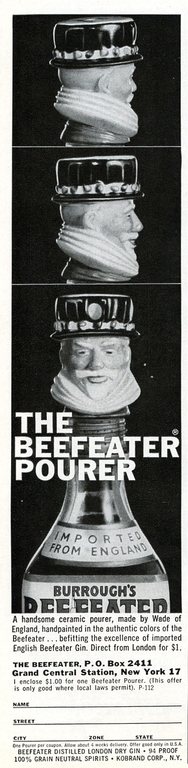
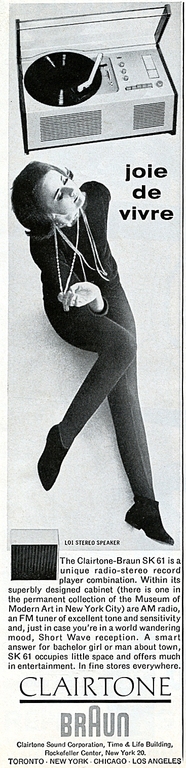
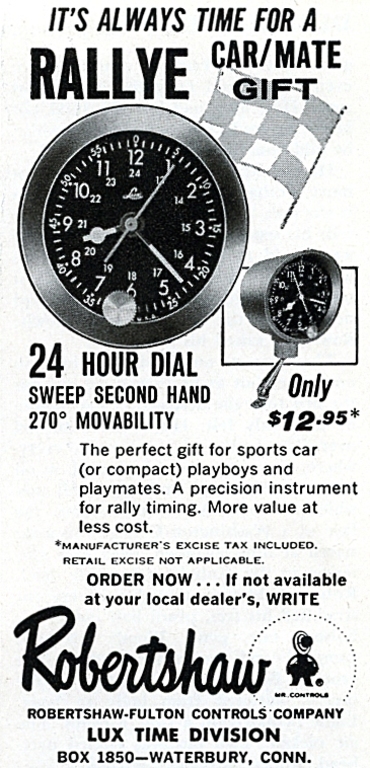
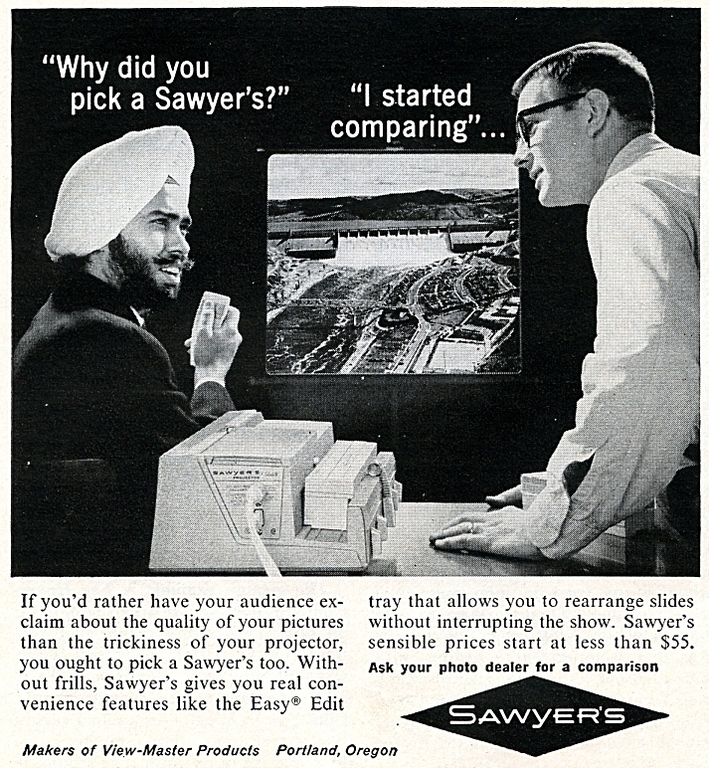
Given Playboy‘s reputation, the magazines are surprisingly non-raunchy. However, the adverts were interesting. They were almost all for tobacco and spirits, but there were also adverts for men’s clothes, shoes, cars, technology and executive toys. I scanned my favourites, and here they are.
I’ve also promised to send these to Chris Wild at Retronaut, so I hope you’ll see them there soon. If you don’t follow Retronaut already, I strongly recommend you follow them on Facebook or Twitter. There’s always something interesting to read! 😀
As if the internet didn’t already have enough kittens, Hannah and I adopted a rescue kitten called Mittens. She is a semi-feral cat and is quite afraid of people. After a few hours of being around her she let us stroke her briefly, but she usually hisses. She won’t let us pick her up, but if you grab her with a towel and bundle her up, she quickly relaxes and lets us pet her head.
With time, I’m sure she’ll grow to trust us. In the meantime, here’s a few pictures.
Whether or not they have an interest in astronomy, at some point most photographers are likely to take a picture of the Moon. There’s a lot more to astrophotography than you might think, so I’ll walk through this step-by-step guide on shooting the Moon.
Capturing the best source image
It’s important to capture the best raw image data that we can, which will make the whole process easier. In this guide, I am assuming that you have a DSLR with a removable lens. Most of the advice also applies to film SLRs and digital compact cameras though, so don’t worry if that’s what you have.
Equipment
The lens has a lot more to do with the picture than the camera. For shooting the Moon, I recommend you use a telescope or a telephoto lens. The longer the focal length, the better. For most people, this means using a 70-300mm zoom lens, although if you have a 500mm camera lens, or a telescope which can be anywhere from 700mm up to 2000mm, then you can use that. On most crop-sensor DSLRs, a focal length of about 1400mm will make the Moon fill the viewfinder.
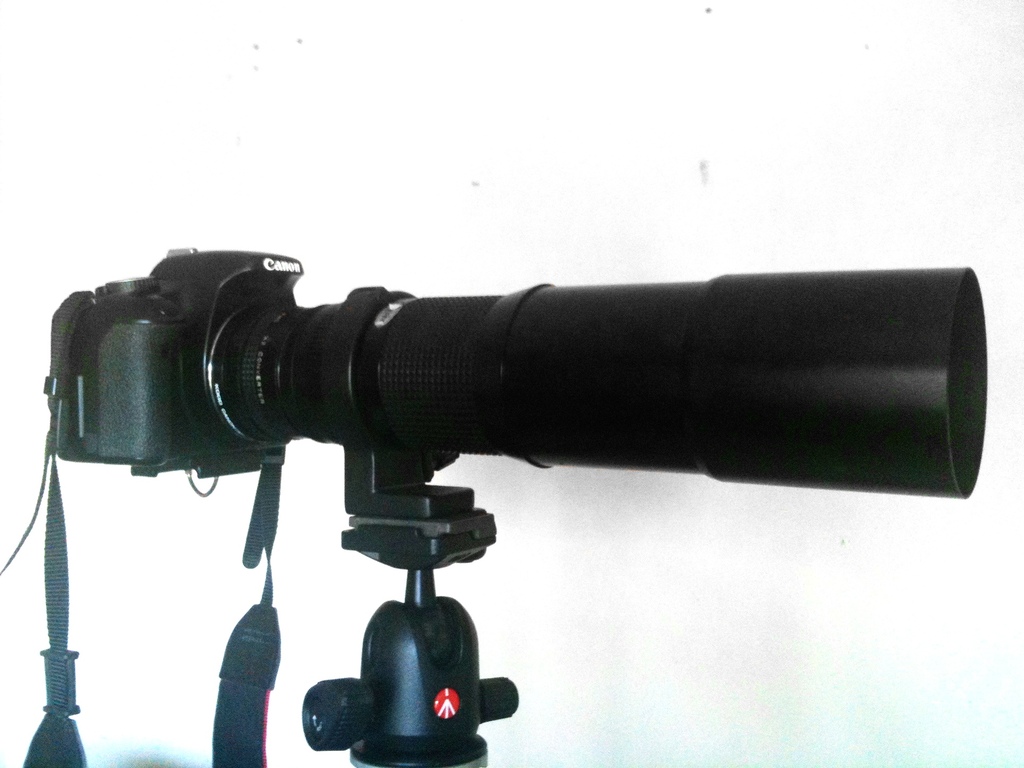
Tokina 400mm on Canon 450D
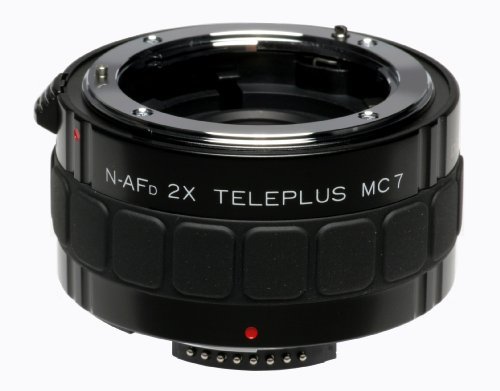
If you want to get a bit more reach, you could use a teleconverter. This fits in between your lens and your camera, and effectively multiplies the focal length of your lens – at the cost of losing some of the light and sacrificing some sharpness and quality. Common teleconverter sizes are 1.4×, 2× and 3×.
Kenko Teleplus MC7 2x TeleconverterAt these long focal lengths, the tiniest vibration will make your picture blurry. A tripod is absolutely essential – the sturdier the better.
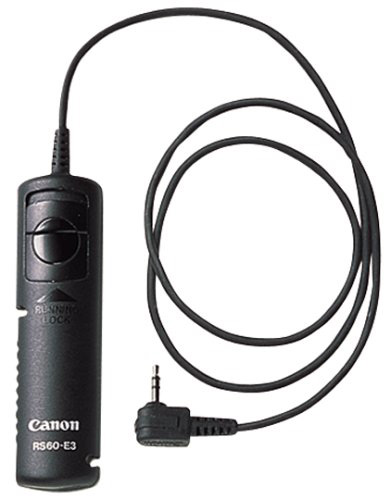
Always use a cable remote to trigger the shutter without touching the camera. All SLRs support these, but most compacts probably won’t. If you can’t use a cable remote, the self-timer is your second choice. Set the timer, carefully press the button, and hope that the vibrations have died down by the time the photo is taken!
If your camera has mirror lock-up, you should always use it. This means the first time you press the button, the mirror flips up and the viewfinder blacks out. Then you wait a few seconds for the vibrations to die down, and then press the button again to fire the shutter. Mirror movements are a common source of vibrations and are probably the biggest cause of blurry Moon photos.
Technique
Forget autofocus. If your camera has a manual focus option, use it. It will be more accurate, faster, and will prevent your camera from re-focusing on each shot you take. If your SLR offers live view, use that and magnify the view if possible. Once you’ve set the focus, leave it alone 🙂
The Moon is bright (brighter than you think) and it is set against a dark sky. This really confuses the camera’s auto exposure, so it’s best to use full manual mode (usually marked M on your camera dial). You’ll need to tinker with the settings, but if you set the ISO to 200 then some reasonable starting settings for the full Moon might be a shutter speed of 1/250 and an aperture of f/11. Take a few snapshots until you get an exposure that looks about right. The most common mistake is to overexpose the Moon. We often think of it as being white, but it should be grey in the camera.
Keep your shutter speed fast. If you let it get too long, you will start to get motion blur. Shoot at least as fast as 1/250.
Choose a middling value for your aperture. Most telephoto lenses have a maximum aperture of around f/5.6 at full zoom. Usually this gives poor image quality, so it helps to stop down a few stops. Usually f/8 or f/11 is OK. Much smaller than that, and you start to lose sharpness again due to diffraction. If you’re not sure where your lens’s sharpest aperture is, check some reviews. Failing that, a good rule of thumb is the the sharpest aperture is 2-3 stops down from the widest.
Feel free to set the ISO as high as you like. You may be aware that higher ISOs cause more noise in the picture – especially in low light conditions. This is absolutely true, but in this case it doesn’t matter. We will discuss effective noise reduction techniques for astrophotography later in this guide. If choosing ISO 1600 enables you to keep a fast shutter speed and to use the sharpest aperture, so be it. Don’t be disheartened by the grainy pictures that come out – these are not the end product.
For reasons that will become clear in a minute, once you’ve found the ideal focus and exposure, you’ll need to take a few near-identical pictures. The Moon will naturally drift across the viewfinder – this is fine. You might want to place the Moon in one corner of the viewfinder and repeatedly take photos until it reaches the other side. Anywhere between 3 and 10 pictures is fine – just don’t forget that when shooting repeatedly, you still need to give vibrations time to die down after each mirror lock-up.
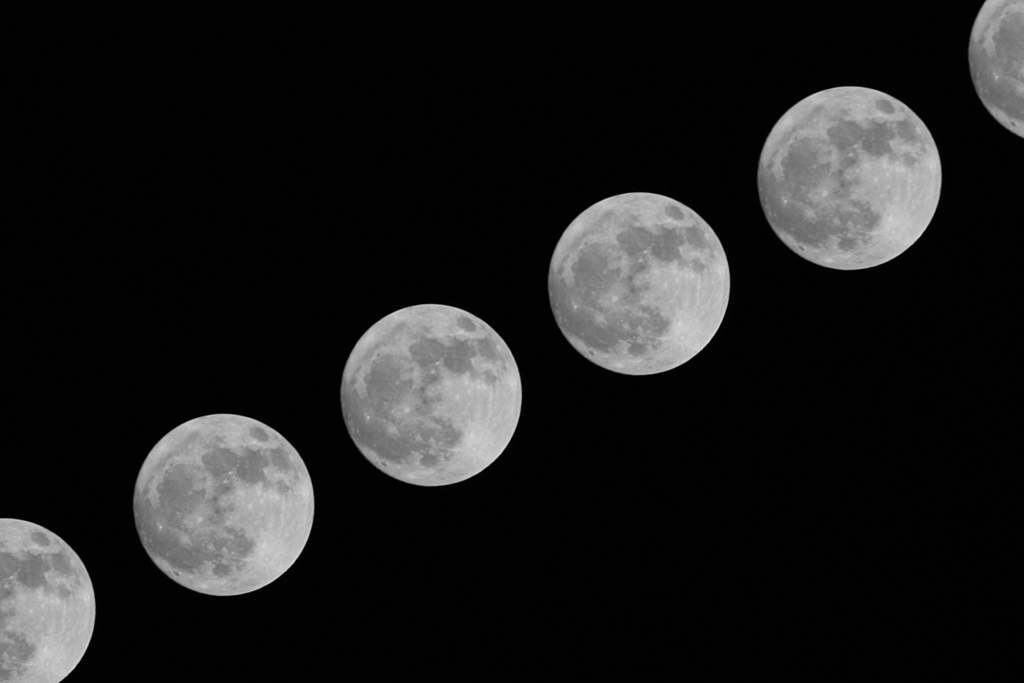
This next picture shows how fast the Moon moves across the sky. These exposures were taken just three minutes apart each, using a 300mm lens. Even leaving time to fiddle with the mirror lock-up between each exposure, you ought to be able to shoot at least one picture a minute, which will give you quite a few pictures at the end of the session.
Post-processing
Now that you’ve taken a handful of source images, we need to work on them to bring the best out.
Stacking
Stacking means taking a set of similar images, shifting and rotating them so they line up, and adding them together. This has the effect of averaging out noise from your camera, and distortions from atmospheric turbulence. The best free piece of software for Windows is called RegiStax. Those using Linux might want to consider ALE.
I wrote about ALE on this very blog not so long ago, but if you need a helping hand with RegiStax then I recommend you read this RegiStax tutorial. For the mostpart, you just follow through the steps it gives you – but there are a lot of scary options.
No matter which program you decide to use, after stacking, you will end up with a single image file which will look like a slightly improved version of a single frame. Now we move on to post-process this image in a more conventional photo editor. If you have Adobe Photoshop and you are familiar with it, then use that. I prefer to use GIMP which is similar to Photoshop but also free. It runs on Windows, Mac or Linux.
Colour channels
If you are shooting the Moon, it is effectively black & white, so we can do a trick with colour channels to improve sharpness at the cost of converting the image to actual black & white. (This doesn’t work if you want to end up with a colour photograph, by the way. If you’re shooting colour images of planets or similar, skip this step). Open your stacked image in GIMP.
Go to the Colours menu, Components submenu and choose Decompose. Make sure colour model is set to RGB, uncheck “Decompose to layers” and press OK.
This will split your colour image into its red, green and blue components, each of which opens as a new monochrome image. Now you can close the original image to save confusion.
Examine the three monochrome images you’ve got. They should be similar, but subtly different. Which one is sharpest depends on how much light pollution there is in your area, what colour it is, how well your lens/telescope performs at different colours and a million other factors. Zoom into each picture at 100% (do this by pressing 1) and have a look at the craters for comparison. When you’ve chosen the sharpest image, close the other two.
Unsharp mask
One of the best techniques for sharpening a slightly blurry picture is to use an unsharp mask. I won’t go into the theory here, but the basis of a blur is that a tiny dot becomes a small circle. Unsharp masking studies the image, and tries to convert the small circles of blur back into dots.
For this to work, we need to estimate the radius of the blur. Zoom into your image as far as possible (1600%) so you can clearly see the individual pixels as squares. Find an area of high contrast – either the edge of the Moon, or the edge of a crater. The edge of a crater or the lit edge of the Moon should be a sharp, defined line, but you’ll see that it is actually a gradual change, a few pixels wide. Count the number of pixels that it takes to cross the boundary.
In this example the middle red line (roughly) shows where the true edge of the Moon is. The outer two lines approximately show where the blur extends to. The distance between the two outer lines is roughly 5 pixels in this example. Work out the equivalent number for your image, and remember it.
Edge of the moon
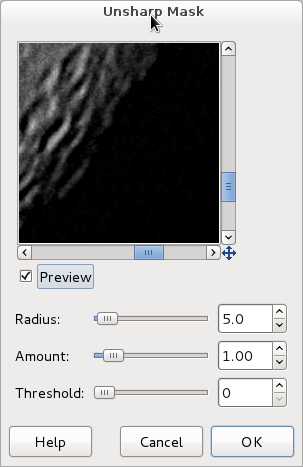
Go to the Filters menu, Enhance submenu, and choose Unsharp Mask. Set Radius to the number you found in the previous step. Amount is set to 0.5 by default but you can change this if you wish. Numbers between 0.5 and 1.0 seem to work best.
Scroll around in the preview window to look at interesting parts of the image. Repeatedly tick and untick the Preview box so you can see what effect the unsharp mask will have. When you’re happy, press OK.
Colour curves
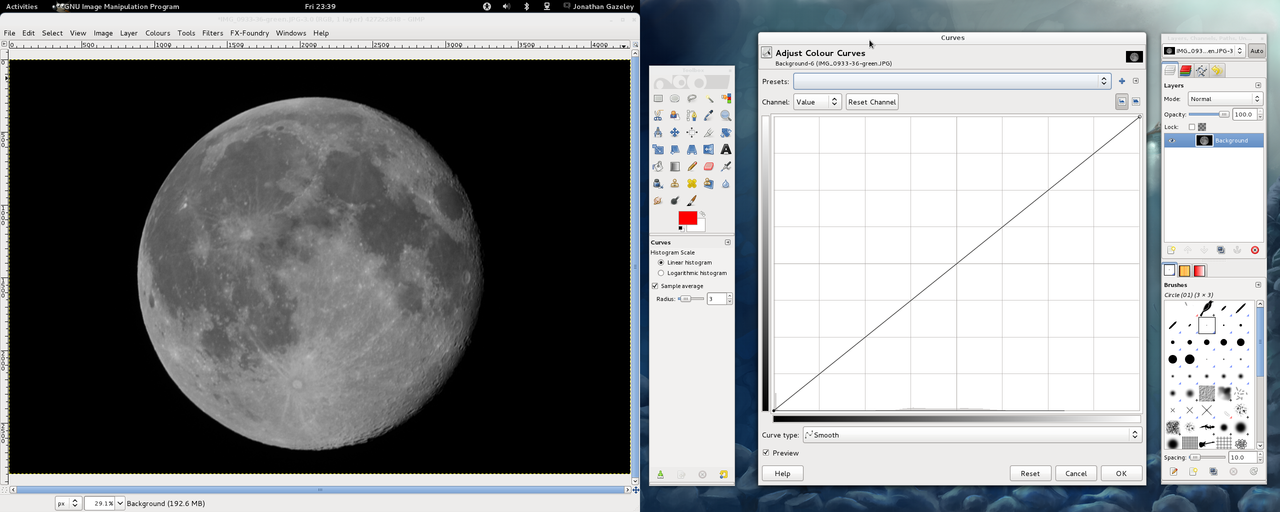
The name is a bit misleading – colour curves don’t have anything to do with colour in this context. They are a good way of enhancing contrast, though. Bring up the curves window by going to the Colours menu and clicking on Curves. The default “curve” is actually a diagonal line.
Arrange the curves window and your image alongside each other so you can see both at the same time. Drag the shape of the curve into a gentle S-shape. The exact shape and amount of the curve depends on your needs, but have a look at the next two screenshots to see what effect the curve has had. Click on the images to view them larger and use the arrow keys to go back and forth. You can immediately see that the dark patches are darker and the pale patches are paler.
Default colour curveS-shape colour curve
Saving
That’s it! You’ve now finished all the basic editing in this tutorial. Save your image, but make sure you do Save As and choose a different name, so you don’t overwrite your original.
Summary
This guide touches upon a few of the most common techniques in astrophotography. It is by no means the ultimate guide. If you’ve got any questions, extra tips or if you spot any mistakes in this guide, please comment and let me know. Also, I encourage you to post your Moon photos at the bottom of this page, share your work and show off what you’ve done.
Our January trip to Conham River Park was a good excuse to test my new Ensign Ranger Special, given to me for Christmas by Hannah’s dad Arthur.
It’s a fairly typical folding camera, except that it allows you to take pictures either in square or rectangular format. On this occasion, I chose square (and then you’re stuck with your choice for the whole film). It’s a nice camera and it handles well, but my example (dating to 1953) has a little bit of rust on the film gate which appears to have come off and become stuck to the film. In some places it stayed stuck, causing white dots on the film, and in other places it scratched the surface, causing black dots.
Perhaps more alarming, a small insect apparently got inside at one point and was sat on the film when I took a picture, leaving a perfect silhouette. It’s strangely transparent, but I hope it got crushed in the rollers!
Still, you didn’t come here to see pictures of a fly stuck to some film in an old camera. Here are the pictures I took at Conham on a cold and bleak day.
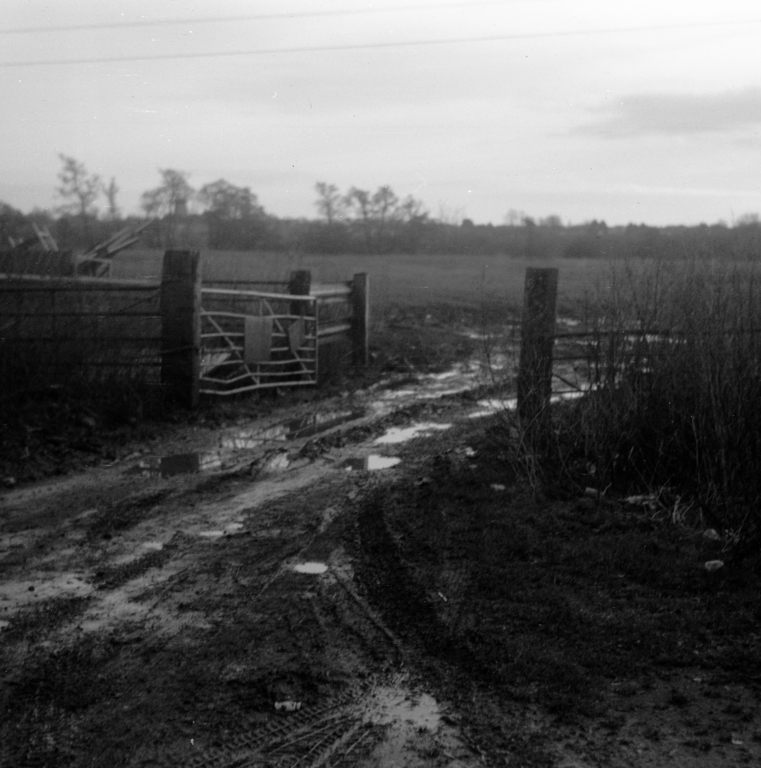
At one stage we veered away from the river and passed through this gate.
Through the gate and across the field, you can see the Cadbury factory in Keynsham.
I’ve had a film in my Zorki 4 for a few months now but it has seen hardly any use. I took it to work in central Bristol and left it on my desk, so it would be more likely to see some outings at lunchtimes.
My cycling route to work takes me through Castle Park, where somebody had laid this poppy wrath on a memorial stone on a misty November morning.
Poppy wreath
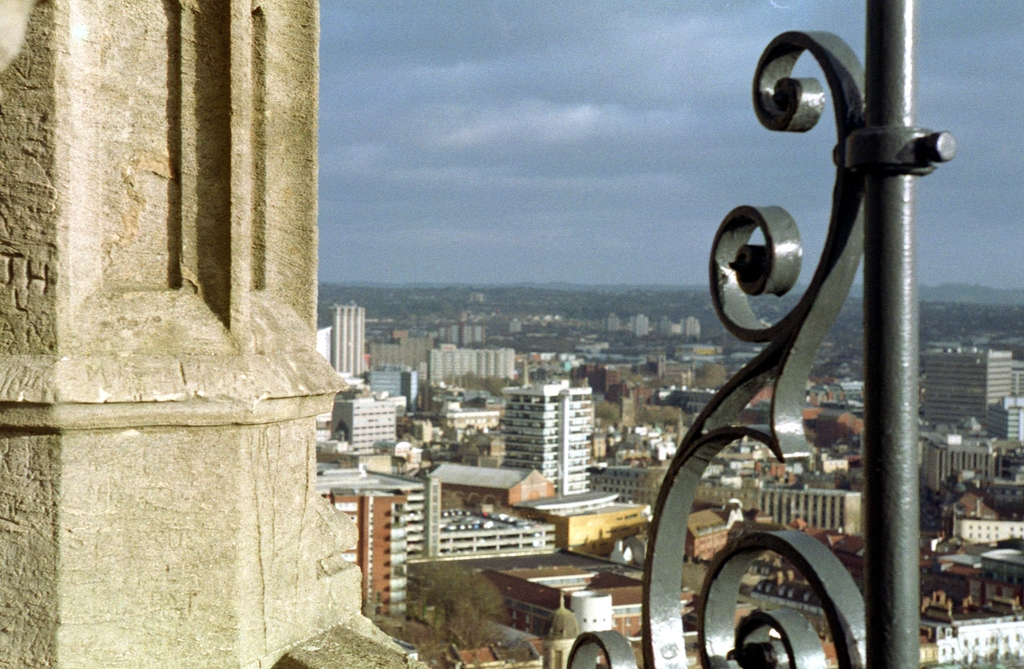
After several years of closure for refurbishment, Cabot Tower is now open to the public once again. I went up with Chris and Paul (who took a panorama). The lighting was a bit grey and flat but I think the photos are OK. The same can’t be said for my ears and fingers, which almost froze off.
Bristol seen from Cabot TowerBristol seen from Cabot Tower
Bristol seen from Cabot TowerCabot Tower stonework
On a different day, a photowalk found Chris, Paul and me in a children’s playground in Redland. After I had spun them round on the roundabout, I managed this photo of the log swing.
I went out for a scout this afternoon to find some new places to take pictures. As well as finding good locations, I needed to know which lenses to bring next time. None of the stuff in this article is ground-breaking but I think it’s a useful rule of thumb (literally).
For now, let’s forget about lens focal lengths in millimetres and think of the angular field of view of a lens. Hold your arm out straight in front of you. You can judge the angular size of a distant object by comparing it against the angular size of different parts of your hand.
So when you get home, you’ve got a list of places and the field of view you need to take each photo. Now you can use this table to figure out which lens you’ll need to give you that coverage. I’ve rounded the focal lengths to the nearest commonly-found focal lengths for APS-C DSLRs, 35mm full-frame (D)SLRs, and medium format cameras.
So to give a real example, if you are out on your scouting walk, and you note that you can cover part of a landscape with the palm of your hand, you know the angle subtended by the landscape is 10° and that you’ll need a 135mm lens for your DSLR when you return.
I hope this is useful to someone – I’ll certainly be using it from now on.
Usually the diagonal angular value is given, but in this example I think it makes more sense to use the horizontal dimension.
I have a large music collection, and today I wondered how physically large it might be in various obsolete formats (not including the playback equipment).
SD card
MiniDisc
CD
Cassette
LP
1/4″ tape
In its current form, it is stored on a hard disk as 59GB of MP3 and other digital compressed formats. It has a total playing time of 718 hours – just a touch under a month.
Format
Weight
Size
MP3s on 64GB SD memory card
0.002 kg
1.613 cm³
582 MiniDiscs
14 kg
21,338 cm³
538 audio CDs
59 kg
95,495 cm³
718 cassettes
57 kg
81,001 cm³
897 reel-to-reel tapes
449 kg
151,593 cm³
862 12″ LPs
172 kg
400,938 cm³
1724 12″ EPs
345 kg
801,876 cm³
OK, so EP was a slightly facetious choice of format for storing an entire music library, but if we compare the SD card to a stack of LPs, the LPs weighs 86,000 times more, and is 248,566 times larger. In fact, the LPs would be about the same size as a wheelie bin, and weigh as much as two people.
While the reel-to-reel tapes are a bit smaller, they also weigh almost half a ton!
If you’re curious about the definitions I’ve used in these back-of-the-envelope calculations, see the following section.
Definitions
Audio CD – Playing time 80 minutes, in hard jewel case with paper inlay
MiniDisc – Playing time 74 minutes, in hard case
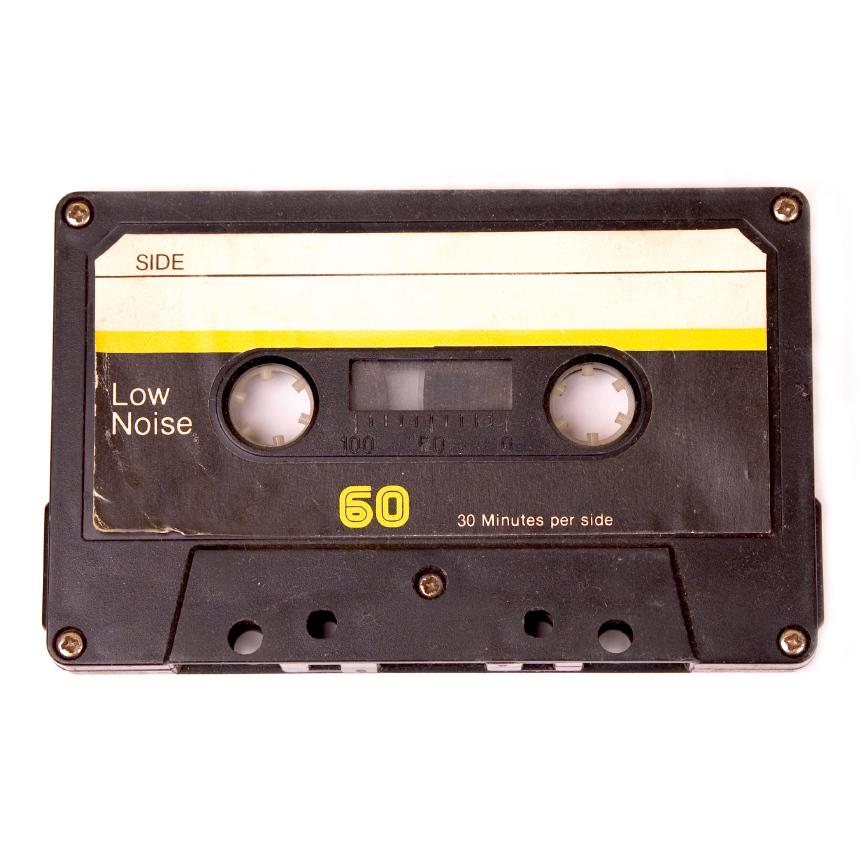
Cassette – C60 cassette, playing time 60 minutes, in standard hard plastic case
Reel-to-reel – ¼” 1800′ tape on 7″ reel, 7½ips playback speed, playing time 48 minutes, in card box
LP – 331/3rpm 12″ vinyl, playing time 50 minutes, in thin card sleeve
EP – 45rpm 12″ vinyl, playing time 25 minutes, in thin card sleeve
A friend of mine is a researcher in the field of chemical physics. This week, he invited me to his lab to take a photograph of his 5 megawatt laser, which strikes a copper target and makes a plume of plasma that lasts for just a few fleeting nanoseconds. Normally, I like taking photos of landscapes or architecture, but there’s no way a geek like me can resist the invitation to play with a frickin’ laser.
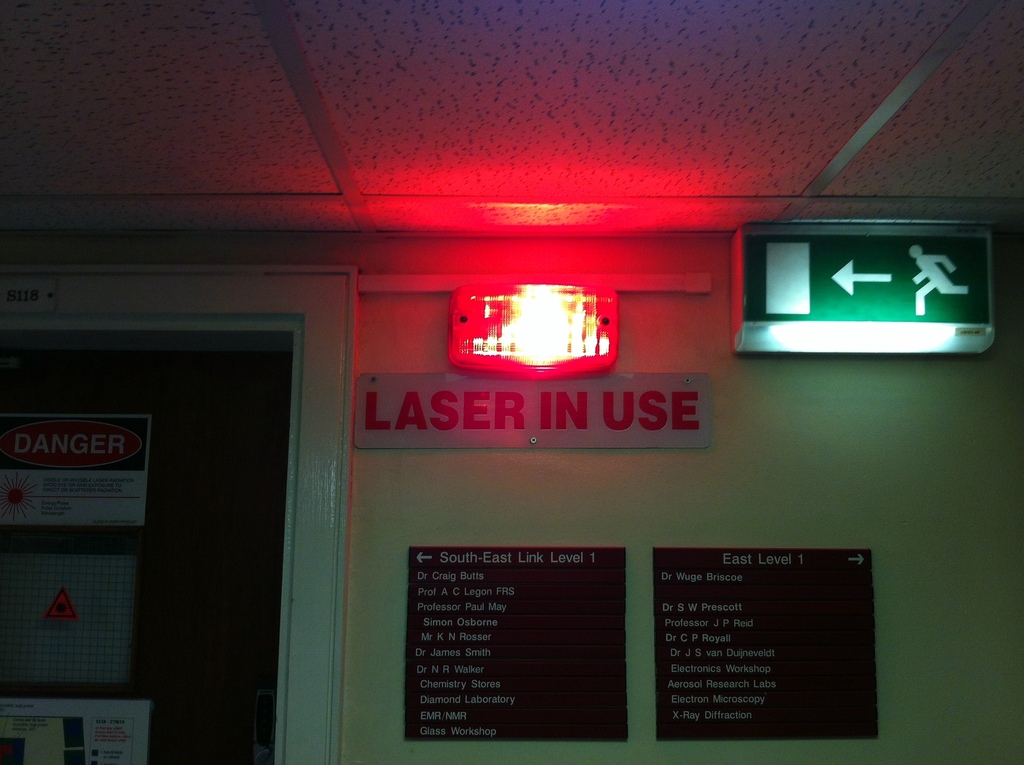
Naturally such a powerful laser is potentially rather dangerous, so I was under strict instructions not to touch anything, lest I get my hand zapped off or something. Laser safety goggles were the order of the day. As they say, “do not stare into beam with remaining eye.”
Laser sign
The laser table is large and complex. The laser itself is on the far side of the table, behind the computer screen. The beam then bounces around various mirrors and lenses in the section of the table on the left, which has black safety screens to catch any stray reflections. I am told that if any dust gets on the mirrors, it will absorb enough laser energy to become hot enough to damage the mirror.
The beam then enters the metal tube at the front of the table, and finally zaps the copper target in the square metal box in the near-left corner. The box contains a near-vacuum, with a pressure of just 3 ten-billionths of normal atmospheric pressure. The box has an observation window, and if you look carefully you can see my black camera over the hole, peering through the window.
The white box in the very foreground is a specialised laser detector, fitted out with all sorts of gizmos, including the computer on the trolley.
Laser table
Finally, the image we’ve been waiting for. This picture shows the inside of the box. The green laser beam enters the picture from the right, but you can’t see it because there is no mist or smoke for it to reflect from. The centre of the bright flash is where the beam strikes the copper, and you can see a bit of green in there. The plume of plasma then spreads back along the beam, heading right. It isn’t also going left – what you can see there is a reflection of the plume on the shiny copper surface. Not sure what else I can say about this. I’m no expert!














































 Jonathan Gazeley