I’ve been using awstats to collect statistics on visitors to my blog since July 2009. I’m a sucker for pretty graphs, so I’ve made a few 🙂
Operating systems
First and foremost, which operating systems are visitors running?
Operating systems
Good to see a disproportionately large number of Linux users! It’s probably a self-selecting audience to a certain extent though, as many of the posts on this blog are Linux guides or musings.
Linux distributions
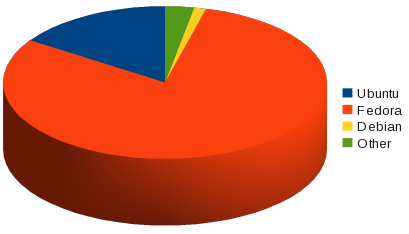
So what distributions are the visitors running?
Linux distributions
Overwhelmingly Fedora, it would seem. Again, perhaps no surprise as most of the articles here are about Fedora or CentOS.
Windows versions
Should I be worried that some of my visitors are still running Windows 98, Me and NT? Should I be concerned that there are also many hits from Windows 2003 and 2008, the server editions?
Windows versions
Browsers
And, of course, a chart of the browsers.
Browsers
Unsurprisingly, Firefox blows everything else out of the water. “Others” included Netscape, Konqueror and FeedDemon.
Interestingly, the proportion of Mac users is far greater than the proportion or Safari users – which implies that Mac users are probably running Firefox instead.
When I get my Vista-based Media Center to scan for FreeView channels, it finds them all correctly. When I go to add listings, I choose my region and it fetches them. But ITV1 and ITV2 both lack listings – despite the fact that the listings in question appear to be available.
There’s a tweak you have to do, and then it all works wonderfully.
First go to the Main Menu, choose Tasks and then Settings.
Step 1
Choose TV
Step 2
Choose Guide
Step 3
Choose Add Listings to Channel
Step 4
Choose the channel that is causing you problems. For me it was ITV1 and ITV2 (although oddly not ITV2+1).
Step 5
Scroll down the alphabetical list of available guides, and choose the right one for your channel. As you can see, there may be more than one available guide for some of the channels, so try both until you get one that works.
Step 6
Choose Save
Step 7
Rinse and repeat for each of the channels that is lacking guide data.
Open the Guide and make sure the data is now there.
Today I encountered a problem in my FreeRADIUS setup. Usernames can be sent to my RADIUS servers as a simple username (e.g. jonathan) or with a realm prepended (e.g. DOMAINjonathan).
When a username with a realm gets sent to a RADIUS authentication server that is doing MSCHAP, the domain is automatically stripped and you never notice. But when it gets sent to an accounting server (clearly no MSCHAP) there is no stripping or escaping done automatically.
This caught me out.
Users were authenticating on my network successfully. DOMAINrachel and DOMAINthomas were happily authenticated against the domain controllers and gained access to the wireless. But when they started sending accounting packets, the r and t portions of their usernames were sent to the database unquoted, where they were interpreted as a Unix newline and a tabspace respectively.
Eeek!
I didn’t notice until I saw that MySQL had converted these r and t characters to the hex equivalents. Where my accounting table should have contained rachel, it actually contained DOMAIN=0Dachel.
Yikes!
I fixed this by creating a local proxy realm. At the end of my proxy.conf, I added these lines:
realm DOMAIN {
}
Obviously substituting DOMAIN for the real name of my domain.
Then in the preacct section of my virtual server I added the module ntdomain to populate the variable %{Stripped-User-Name} with the domain part of the username that was originally in %{User-Name}.
Now, looking at the top of whichever dialup.conf suits your database architecture, make sure the following line is uncommented:
…and that all other definitions of sql_user_name are commented.
Once you’ve done this, your accounting detail logs will contain username likes DOMAINusername (with an escaped backslash) and your database table will simply have username.
That is, I wish I wasn’t a cretin when I was a child.
I have an archive of hundreds of photos that I took as a child on various single-use cameras. I’ve scanned in the 6″x4″ prints over the past few weeks and they’ve come out as well as can be expected for grubby, well-handled photos with an inexpensive flatbed scanner.
But last month I bought a 35mm scanner, mainly to scan in new negatives that I will be taking with my 35mm SLR. I’ve also used it to scan in the old negatives. Trouble is, as a cretinous child I had no idea how to look after negatives and I didn’t realise the significance of preserving them. In 1990, who’d have thought that almost two decades later I would want to scan them in?
The negatives are extremely scratched and fingerprinted. The scratches are too wide for infrared scratch removal to be of much assistance. Shame, as it is now impossible for me to have a perfect digital copy of the photos I took all those years ago.
Having said that, the scratches don’t ruin the photos for me. If a stranger were to look at the scans, the first thing they would notice would be the appalling condition. But for me, the photos still conjure up memories of family holidays, weddings and school trips past – regardless of the scratches. In that way, they are still doing their job perfectly. 🙂
I decided to buy a NAS and remove the disks from my home server.
I didn’t want to spend too much money, since this was one of those non-essential projects. But equally, I didn’t want to spend too little and get something that would break and destroy all my data with it. Eventually I decided upon a Promise SmartStor NS4300N.
Features
It had all the features I wanted, including:
SMB/CIFS for Windows clients
NFS for Linux clients
RAID5
Gigabit Ethernet with Jumbo Frames
First impressions
So how did it shape up?
The build quality was relatively poor. It’s made from thin plastic and feels flimsy. The disk caddies are incredibly flimsy and flexible, and I felt nervous even handling them; but this didn’t matter because I planned to assemble it and leave it alone.
It wasn’t exactly quiet either. There is an 80mm fan for the disks and a 40mm fan for the internal PSU. The 80mm fan only spins when the disks are hot but it is very noisy when it does so. The 40mm fan is constant but not so loud. And of course there’s the sound of four hard disks, which varies depending on make and model. Overall, it’s probably quieter than a standard computer, but you wouldn’t want to sleep with it in your bedroom.
It’s not a problem for me because I’m putting it in the loft.
Setting it up
The initial setup wasn’t as straightforward as I thought it could (should?) have been, especially for beginners. But it wasn’t really much trouble to set up a RAID5 array with 4 x 500GB disks and format it, for a total of 1.4TB.
More confusing, perhaps, was the selection of different protocols and the layout for setting up users, shares and permissions.
I wanted to set up two shares, public and private and set public to be world-readable (for my media centre) and private to be accessible only by me. If you create these accounts on the NAS, it’s simple enough to tick the boxes and set the desired permissions on Windows (SMB/CIFS) shares.
But NFS was a different kettle of fish. No user-level permissions are available on the NAS for NFS, and the only control you get is a list of allowed IP addresses. By default the NAS says it allows *.*.*.* but I found that this didn’t let anyone in. Adding real IP addresses to the list worked.
However, I found that when you have data shared both as NFS and SMB/CIFS, the permissions go out of the window and are not respected at all. An unauthenticated guest user was able to read and delete files from my private share.
Performance
Performance was far worse than I had expected.
With the NAS mounted on my PC via NFS, it would only manage 4.8MB/s sustained write rate, and 13.5MB/s sustained read rate. That’s significantly worse than the sustained 30MB/s I used to get with the same disks in the server, as a Linux software RAID array. On top of that, writing at this speed tied up my computer’s quad-core CPU 100% with IOWait.
With the NAS mounted on the same PC via SMB, it was able to write sustained at 9.2MB/s.
This is really quite poor, given that the same set of disks when connected directly into the server with SATA could write at some 35MB/s.
It depends on your usage though – if you simply want to play music and videos from the NAS then 10MB/s is fine, even for high definition. However I use mine for large backups and I don’t want to wait almost ten times longer for the backups to complete.
Summary
If you already have a NAS or storage server that you are happy with, don’t buy this.
If you want to use NFS, don’t buy this.
If you care about high performance, don’t buy this.
If you want a reasonably-priced solution for backups or sharing media between computers, buy this. I reckon it would be fine to shove in a cupboard and simply drag your movies onto from your computer, so you could watch them on your media centre.
However, it didn’t cut the mustard with me, so I sent it back. I’ve now returned to my original system with the four disks hosted in the server. It’s fast and the permissions work fine – the downside is that I have to keep a large, noisy ATX tower case and can’t switch to an Intel Atom solution 😦
This week’s Tuesday Challenge from Stu was to create an urban landscape.
I’ve been busy all week and so earmarked Saturday to go out and take some landscapes from various locations around Bristol. Its hilly nature lends itself to grand vistas without needing to gain access to a tall building.
Unfortunately, the weather on Saturday was grey, rainy and very windy. I almost got blown over near Avon Gorge so I wasn’t about to put a tripod up.
Despite the gloomy sky, I managed this shot which is unfortunately the best of a bad bunch.
I came across this article today, which asks the question “When does a netbook stop being a netbook?”.
I have thought about this question in the past, and so I read the article with interest. I was one of the early adopters of the Asus EeePC 701, which was truly a “netbook”, in the original meaning of the word. Its 7″ screen was so small and its processing power was so feeble that it was most definitely a class apart from “normal” computers. It wasn’t really capable of running a “normal” OS, such as Windows XP or Vista, and running a customised Linux distribution immediately set it apart from other computers.
More recently, netbooks have been getting more powerful, thanks to technology such as Intel’s Atom CPU. Screen size has also been creeping up, to the point where it is an acceptable experience to run Windows without any modifications. For example, the EeePC Seashell.
Does this mean these new-generation netbooks are no longer netbooks but simply small laptops?
Traditionally, laptops were slightly more expensive than desktops, and ultra-small laptops (such as the Toshiba Portégé range) were significantly more expensive. The EeePC broke from this tradition by being small and cheap, which is what made it revolutionary.
You couldn’t do everything on a netbook, but you could do the most common tasks everywhere – such as access to websites and email.
A netbook is a small portable laptop computer designed for wireless communication and access to the Internet.
This is pretty much what the original EeePCs were all about. I bought mine to carry around Bristol for my job, and to have easy access to an ssh terminal on the move. It was perfect – it was light and had a decent battery life. I didn’t care that it had a rubber-band CPU, because you don’t need any power to ssh to other hosts.
So what of the latest netbooks with their 10″ screens, dual-core CPUs and full-blown Windows installations? I think this brings them more in line with other laptops. Of course this is neither good nor bad; it depends entirely on the needs of the user. But the most important factors for me are size, weight and battery life. My EeePC 901 is a killer combination – it’s perfect for what I do.
The only reason I upgraded from the 701 is because I wanted the extra storage space for Fedora. I now run Ubuntu Netbook Remix, which will happily fit into 4GB, though.
The other features described in the article, such as fingerprint readers, also increase the cost and weight and reduce the battery life of the newer netbooks. I would personally go without for all the reasons I’ve already mentioned. Like the author of the article, I’d like to see a distinction between netbooks and ultra-compact laptops.
Netbook = cut-down computer built for portability and long battery life. Good for basic tasks; low price.
Ultra-compact laptop = Fully specced laptop, shrunk down into a tiny case. Loads of power for all the things you might want to do, and a price tag to match.


 Jonathan Gazeley